Showing posts with label Illustration. Show all posts
Sunday, December 15, 2013
Reference, Resource, Research: Bizarre Flower Images
This story I'm working on right now has to with flowers in some respects and I thought I'd share some of more unusual ones that I've found while looking up pics and info about them. Here is the Pinterest gallery that I found which has all the original links to the images. There are a lot of great photos in there that I decided not to repost. Definitely worth a look.
Friday, December 13, 2013
Android Art Apps
So far I have only picked up the one I already knew about, SketchBook Pro. Any residual disappointment in the pre-loaded apps is gone. SketchBook Pro, I am finding to be an excellent drawing experience and tool. At a glance it was a little confusing figuring out where all the tools are and why they're in more than one place, but I think it's just something to get used to. I'll post about it more once I've gotten deeper into it.
Anyway here is a nice list of apps and a run down of the original poster's thoughts on them. Thank you very much to micahganske for putting together the original post.
It can be hard to find the right software in Android and the apps suggested by the Wacom Reccomends app are not that great. I want to also say that until we get a feature complete version of Wacom's Bamboo Paper that is compatible with the Hybrid, we're missing a big piece of the digital sketchbook puzzle. Right now the Android version of Bamboo Paper is crippled (when compared to the iOS version) and is exclusive to Samsung devices. Not cool Wacom. You've entered the Android ecosystem so it's time to support it fully!
Anyway, here are the apps that I've found are great with the Hybrid:
Layer Paint HD: This is currently in beta but can be purchased in the Play store. It's the best app hands down for hi-res line art as it will let you work in just about any resolution you want. I've been working on 6000x4000 pixel images and it's smooth and responsive. If you want to do more in-depth painting at that size, you'll run into issues as the brushes don't go up to really huge sizes, but for pencil/pen simulation at super hi-res, it's absolutely fantastic and the dev is quickly updating and improving the app. There has been 3 upgrades in the last week for instance.
ArtFlow: This is a fantastic app with a beautiful UI. I really love it but the problem (right now) is that it crashes on the Cintiq. There is currently an issue that causes it to crash when touch input and stylus input happen too close together. It will be a wonderful app for the Hybrid eventually though. I've been emailing with the dev and he's eager to get it all working smoothly. Right now it only supports 2556x2556 canvas sizes but he's also planning on upping it to 4096x4096 soon.
Clover Paint: This app is sort of crazy. The UI is really awkward but it offers unlimited resolution for canvases and is EXTREMELY customizeable. You have more control over brush settings that you do in desktop Photoshop which is bananas. It also has a really nice brush engine. Definitely not for everyone but an interesting option to be sure if high-res artwork is what you're looking for.
Infinite Painter: This is a nice app if you want to simulate real-world type painting. Honestly, if I want to do detailed color work I'll connect to my pc and use photoshop though. This works well with the Cintiq but with a limited canvas resolution.
Sketchbook Pro: Everyone already knows this app but I'll put it in here anyways. This isn't my favorite app as I find the UI to be really slow to use, but it does work perfectly with the Hybrid. The issue for me is that it's limited compared to the iOS version and is also has a limited max canvas size.
Paperless: This app isn't very good but I'll include it since it's the only app in the Play store that tries to pull off a "Paper by 53" style. It's very mediocre when it comes to it's brush and line quality though. I really just wish Paper by 53 would come out for Android. Or Bamboo Paper...
Apps to Avoid (for drawing and painting)
Photoshop Touch: It has a terrible brush engine. Simply awful. It's okay for basic photo editing and collage though. Just very disappointed in it.
Thursday, December 12, 2013
Wacom Cintiq Companion Hybrid First Impressions
No, really. The first of my first impressions, even. I had some things to do last night and setup actually took a little longer than I had expected so I didn't have as much time with it as I had hoped. I'll just hit a few points as they occur to me for now.
Size and Dimensions:
I don't have much to say about this because I don't think it matters all that much if you need the device's functionality. Though as far as first impressions go, I was pretty surprised at how thin it was.
Drawing and Writing:
The accuracy and sensitivity are incredible. I was really surprised because I've never used anything remotely as accurate. SketchBook Pro on my iPhone is also precise, but I don't have a stylus for it and the screen is small, so I still haven't used it for much other than to let my friend's kid play. The matte finish on the screen feels really fantastic as well. I wouldn't say it feels exactly like paper, but gloss would have made for a much less enjoyable experience.
Using the preloaded applications I felt a little let down. Just as I had read, they are as bare bones as it gets. There is a serious lack of tools and functionality. I've heard for Android apps that SketchBook Pro is a great buy and I saw some people talking on the Wacom EU forums about something called Artflow, but I have yet to check it out. I kind of get what I had read to be the consensus anyway: in mobile mode preliminary work is not a problem, but it's not really possible to take an illustration from start to finish without plugging into a PC and loading up a graphic art suite.
Android:
I've never used an Android device before. Navigating menus was smooth and comfortable, more so than I had anticipated. Using a device with all my Google apps and data integrated is the cake-taker though. I had sort of forgotten that this would be the case and was ecstatic when it prompted me to load all my Chrome bookmarks and my Google account. I think I'm going to really like this.
I'm going to buy a card for Google Play today so I can pick up some sketching apps. After the Sony Playstation Store hack and credit card info scare I stopped using credit to buy apps online or I would have downloaded some last night. I'll post about it when I get into some of the other mobile apps.
Edit: Probably the first thing I noticed were the little rectangular insulators you can see in the screen. I used to wonder what that grid of dots was before I worked for Micro. Now I know they're insulating bridges that allow current to pass through the X and Y axis without shorting out. Depending on the touch panel they might be clearly visible or maybe not at all. Some designs don't have them, but I haven't personally worked with those. Just a neat tidbit in case you've ever wondered about those as I did.
Sunday, October 27, 2013
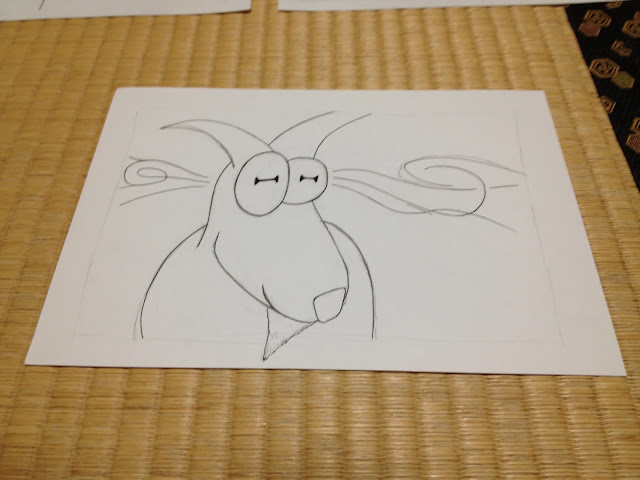
ひとりゴート Ink Progress
Well this is my haul from inking this weekend. I'm just shy of finishing half of the pictures. I may tweak these here and there, but this is basically it. There are ten pictures here, but two of them are on the backs of others. I did a test scan to see how nicely that would play with my scanner and it does bleed through a little, but I fixed it with almost no effort by shuffling contrast and brightness bars. So for these black and white scans it definitely won't be a problem. I'm thinking that it won't bleed through at all after I do the crayons, but the worst case scenario would have me redrawing two pictures. A slight pain in the butt. Far from the end of the world.
Mid-ink thoughts--I expected to get tired of drawing goats while working on this book, but that hasn't been the case. It's the grass. I'm tired of drawing grass. So much of it. I like the look of it and all, but my hand is killing me.
I haven't got a strict deadline for this book, but I want to finish soon so I can work on other projects. I'm still considering my options on how to publish. Going to try traditional publishing first and if that doesn't pan out, I'll try print on-demand with crowd funding. Making it an eBook would be a last resort. Since it's drawn in landscape, I think it would look terrible on most e-readers.
Inks should be done by the end of the week. I leave for a vacation in Hawaii on Saturday and when I come back I want to be doing the crayons. There's a big touch panel expo coming up that my company is going to have a booth at though. Overtime might limit my output this week. Here's hoping it doesn't.
Cheers, ya'll!
| Group shot minus the ones on the backs. Below you'll find pages 1-10 all in order. |
Sunday, October 20, 2013
Writing Resources to Sharpen your (S)words
Not long ago at a convention-esque 40k event I met Steve Parker, one of the writers for Games Workshop's Black Library publishing house. He was a very friendly and encouraging guy. When he gave me some advice on resources for honing my writing skills, I was excited and keen to lose more sleep to this part of my life than I already do.
There were essentially two resources that he recommended to me. The first is the Writer's Digest Elements of Fiction series. Each of those books was written by a different author and focuses on a specfic area of writing fiction. The one I'm reading first is Orson Scott Card's Characters & Viewpoint. I'm about a third of the way through it despite being hopelessly transfixed by A Storm of Swords. So far it seems pretty good, but it's hard to say much about it without finishing it and trying some of Card's methods. The best of it so far has been about knowing the needs of your story and asking a lot of questions. I hope to finish this one around the time I finish my current picture book project. I won't be starting the next picture book until around January and in between I'm going to write some short fiction.
The second resource is an online writers' workshop called Critters. At first I thought to sign up for the time being and then come back to it when I have a story I want critiqued. As it turns out, however, once you register you have to critique a story each week to maintain membership. Oops. I signed up prematurely, but that's really for the best. Procrastination is less than worthless. I've done a month's worth of critiques so far. Each week it is easier to identify and describe what I feel is wrong. Just as importantly, it's easier to say what I think could fix it. I even reread a story I wrote four years ago. I looked at it through fresher, more critical eyes and saw ways to write it how I had originally intended to.
Steve Parker told me that the value in a workshop group is really in being able to identify and communicate what is wrong with stories that don't work for you. After doing this for even a little while I can see how true that is. I am still looking forward to getting some of my work critiqued, however, because I've been reading some of the other critiques that get posted and there is a lot of very good advice given for each story posted. I strongly recommend giving this a try if you are anything as isolated from other writers as I am here in the mountains.
Happy writing and happy critting to you!
Monday, September 23, 2013
Figure Drawing Resources: Loomis and Bridgman
I just heard a name that will probably change drawing for me much more than I can even know just yet: Andrew Loomis. I have a feeling I should have known who he was years ago, and would have if I'd majored in art. Apparently he was a brilliant writer, illustrator and art instructor before WW2. Even Alex Ross looks up to an draws inspiration from him according to one of the Amazon reviews I read.
What's better than all that is that just before I ordered some overpriced copies of his two seminal works, I found a website that links to *gasp* legit free downloads of not only his work, but also many of the other "best figure drawing guides" that people were recommending online.
Edit - here's a link that isn't broken: Illustration Age
I can't wait to get into these books. What an exciting find!
Tuesday, September 17, 2013
Decisions, Decisions: Which Wacom Tablet is Right for You?
Lately I have been doing a lot of reading on Wacom's drawing tablet products. I knew I wanted to improve on how I'm digitizing my work, but I wasn't sure how. For the longest time I just assumed that professional quality drawing tablets are completely out of my price range and so I wrote them off altogether. Well, for whatever reason I took a second look at them and it turns out they're only *almost* out of my price range. It really depends on what I want to be able to do, as Wacom sells a number of products designed for different budgets and needs. I've nearly decided what I am saving to buy and I'd like to share what sort of thinking went into my decision making process.
Why Wacom?
What is so special about Wacom you ask? In one word, digitizers. I don't know how their technology works exactly, but their tablets sport 2,048 levels of pressure sensitivity these days. They also support tilt sensitivity, are incredibly accurate and have satin textured screens that feel like paper. There are other brands out there with some of these features and I have heard good things about many of them, but it seems none have the whole package. The consensus among professional illustrators is that Wacom does it best, but at a price.
Drawing on the Screen vs. Drawing on a Pad
Once you have decided on Wacom, this is, as a friend pointed out, the first decision to make. If you don't mind looking at the screen while you draw with your stylus on a pad (which is exactly how we use mice), then you can save over $800. Wacom's Intuos line of digitizers are excellent from what I have heard, but I didn't consider this option terribly closely. Otherwise I would have more to say about these apparently fantastic tools. I know what I want at a minimum and that is to draw on the screen. Being stubborn on this point will cost me.
Cintiq: Small, Large and Multi-touch
If you fantasize about drawing directly into Photoshop the way I do, then the Cintiq may be for you. This line of products is much more expensive, but they have a wonderful reputation in the digital art community. To start with I looked at the 22" multi-touch model, but very quickly I realized that it would be a $2,500 convenience if I intended to be mostly working in PS. So then I looked at the 22" Cintiq HD which is $500 cheaper. And then I looked at the size of my already cluttered desk. That was when I asked myself a simple question that I should have started with: how much drawing space do I really need? That lead me to YouTube where I watched videos of people painting on the 13HD. I noticed that the screens they were drawing on still looked pretty big. The ability to zoom and move the image also reduces some need for a large screen. At $1,000 it was also by far the cheapest option available. But two things nagged me incessantly in the back of my mind: 1) no battery, so it is always connected by a cable everyone says does not plug in firmly enough and 2) it's just so close to being a tablet PC that I wished it could be unplugged for use on the go.
A New Challenger (or two, actually): The Cintiq Companion and Companion Hybrid
I brought this up to my coworker and he asked me why I don't just get the 13" tablet PC they're releasing this year. Much to my surprise, it turned out they're releasing two with two varieties each. One is a Windows 8 tablet and the other runs Android Jelly Bean 4.2. Both products support multi-touch, have 13.3" screens and all the same features that come with the Cintiq HD13. At first I was drawn to the Win8 tablet because it would be able to run full versions of dedicated art applications. But reading further, I found out that it can't plug into a PC and function as a standard Cintiq whereas the Android tablet can. Essentially that was the deciding factor, even besides the higher cost of the Windows device (128GB at $2,000) and the low internal memory of the Android one (16GB at $1500). I don't want to find myself wishing I could upgrade my hardware later on, or wishing I could work on my PC without having that option available. There are some good hands-on product reviews out there, like this one. I recommend reading more (a lot more) if you're considering one of these specialty products.
Not the Verdict, but my Verdict
Any choice on hardware like this needs to be tailored to the needs of the user. All of these products have good and bad points to them from what I have found, but only two suit my needs and means. Right now I am looking very closely at the 13HD and the Companion Hybrid and I'm leaning toward the Hybrid. That size is just right for me since I tend to work with traditional media that's smaller than that anyway (actually much of my painting experience comes from painting 28mm scale models. The details are unbelievably tiny). The issue now is whether having a stand-alone Android tablet warrants the extra cost. Knowing me I will probably prefer to work at home with it and use proper PC apps rather than the mobile apps available on Android. On the other hand, I also know I will regret it if I don't have the option to unplug and sketch on the go.
No one else can say what's right for you and your work. The best that you can do is to ask yourself the right questions and determine what suits your means and needs. Here are the questions I have asked myself:
- Do you need to be able to draw on the screen. No? Congrats you just saved a lot. Buy an Intuos.
- If you answer to #1 is yes, then is a 13" screen sufficient? Yes? The 13HD may be right for you. Move on to the next question. No? Have a look at the bullet point.
- If you really need a 22" or 24" screen, the last question is whether or not you need multi-touch to make your art.
- Do you need the portability of an independently functioning tablet PC? No? You just saved money! Get the 13HD. Yes? Bullet point below.
- If you need portability there are the two different tablets, one with Android (Companion Hybrid) and one with Win8 (Companion). If you want to use it on a home PC too like a normal Cintiq then the only option is the Hybrid. If you want to use full-fledged creative suites while on the go, then the only option is the Companion. There are different memory sizes, but for the huge costs involved, I would recommend getting a separate micro SD card and/or an external hard drive.
And that's that! There's a very simple flow chart in that list, but I'm not able to put it together right now. Maybe another time. Happy shopping! Or in my case, constantly refreshing the Wacom products page while I daydream about when I can finally get one.
Subscribe to:
Posts (Atom)